# Dify with Keln
Use Keln models in Dify apps and workflows with the Keln plugin from
[Dify Marketplace](https://marketplace.dify.ai/plugins/keln/keln).
## What you need to start
- A Dify workspace, on Dify Cloud or self-hosted. A self-hosted instance needs outbound HTTPS
access to `api.keln.ai`.
- A Keln API key. Sign up at [app.keln.ai](https://app.keln.ai), then open **Keys** →
**Create key**.
- Credit on your Keln account. **Billing** → **Add credit**.
## Connect Dify to Keln
### 1. Install the Keln plugin
In Dify, open **Integrations** → **Model Provider** and type `Keln` in the search box. Hover over
the **Keln** card under **Install model providers** and click **Install**, then click **Install**
again to confirm.
The install can take a few minutes. Wait until **Keln** appears in your list of providers.
### 2. Add your Keln key
On the Keln card, choose **Add API Key**, paste the key and save.
Dify checks the key with one short chat request to `zai-org/glm-5.3`. Keln bills this request at its
normal rate. If the check returns `402`, your Keln balance is empty: add credit on the **Billing**
page, then save again.
### 3. Pick a Keln model
Choose a Keln model in any LLM node, agent or chatbot.
## Models
The plugin includes these 5 models. To use any other chat model from the Keln catalog, add it under **Add another model** below:
| Model | Input | Reasoning effort |
|---|---|---|
| `zai-org/glm-5.3` | text | `low`, `high`, `max` |
| `zai-org/glm-5.3-flash` | text, images | `low`, `high`, `max` |
| `moonshotai/kimi-k3` | text, images | `none`, `low`, `high`, `max` |
| `qwen/qwen3.8-2.4t-a95b` | text | `low`, `medium`, `xhigh` |
| `deepseek-ai/deepseek-v4.1-flash` | text, images | `none`, `low`, `high`, `max` |
### Add another model
To use another chat model from the Keln catalog:
1. On the Keln card, choose **Add Model**.
2. Enter the model `id` from [`GET /v1/models`](api/models.md) as **Model ID** and choose **LLM**
as **Model Type**.
3. Paste your Keln key into **API Key**. Dify asks for it again in this form.
4. Enter the model's `context_length` as **Context size**.
5. Set **Tool calling** and **Vision (image input)** for the model.
6. Click **Add**.
## Cost
The plugin does not provide prices. Dify logs show a cost of 0 for Keln models. Keln bills your
account at the rates on [Models & pricing](models-pricing.md).
## Usage
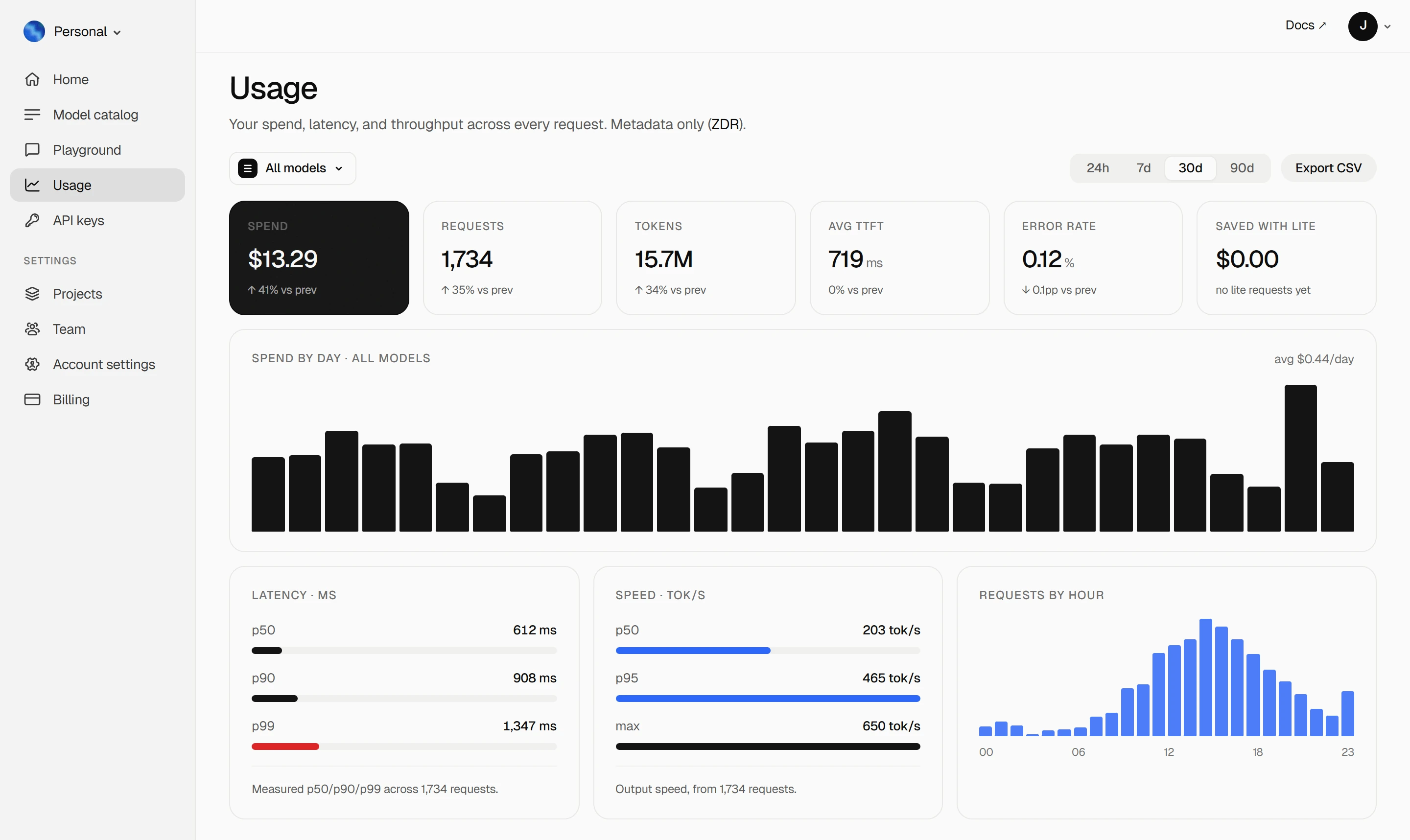
Your Keln **Usage** page shows your spend, tokens, latency and error rate. Keln stores metadata
only ([ZDR](capabilities/privacy.md)).
<figure class="kd-figure kd-figure--bento" markdown>
{ loading=lazy }
</figure>
<div class="kd-figure-cta" markdown>
[Create Keln account](https://app.keln.ai/signup){ .md-button .md-button--primary }
</div>
## Where to go next
<div class="grid cards" markdown>
- [OpenAI SDK and compatible clients ↗](api/index.md)
Connect Keln to Python, TypeScript, LangChain, Vercel AI SDK, or curl.
- [Anthropic-compatible API ↗](api/anthropic.md)
Use Keln models with the Anthropic SDK and Messages API.
</div>
## Try Keln
Create a Keln account and API key to run open models in Dify.
[Get an API key](https://app.keln.ai/signup){ .md-button .md-button--primary }
[Models & pricing ↗](models-pricing.md){ .md-button }
Dify with Keln
Use Keln models in Dify apps and workflows with the Keln plugin from
Dify Marketplace.
What you need to start
A Dify workspace, on Dify Cloud or self-hosted. A self-hosted instance needs outbound HTTPS
access to api.keln.ai.
A Keln API key. Sign up at app.keln.ai, then open Keys →
Create key.
Credit on your Keln account. Billing → Add credit.
Connect Dify to Keln
1. Install the Keln plugin
In Dify, open Integrations → Model Provider and type Keln in the search box. Hover over
the Keln card under Install model providers and click Install, then click Install
again to confirm.
The install can take a few minutes. Wait until Keln appears in your list of providers.
2. Add your Keln key
On the Keln card, choose Add API Key, paste the key and save.
Dify checks the key with one short chat request to zai-org/glm-5.3. Keln bills this request at its
normal rate. If the check returns 402, your Keln balance is empty: add credit on the Billing
page, then save again.
3. Pick a Keln model
Choose a Keln model in any LLM node, agent or chatbot.
Models
The plugin includes these 5 models. To use any other chat model from the Keln catalog, add it under Add another model below:
Model
Input
Reasoning effort
zai-org/glm-5.3
text
low, high, max
zai-org/glm-5.3-flash
text, images
low, high, max
moonshotai/kimi-k3
text, images
none, low, high, max
qwen/qwen3.8-2.4t-a95b
text
low, medium, xhigh
deepseek-ai/deepseek-v4.1-flash
text, images
none, low, high, max
Add another model
To use another chat model from the Keln catalog:
On the Keln card, choose Add Model.
Enter the model id from GET /v1/models as Model ID and choose LLM
as Model Type.
Paste your Keln key into API Key. Dify asks for it again in this form.
Enter the model's context_length as Context size.
Set Tool calling and Vision (image input) for the model.
Click Add.
Cost
The plugin does not provide prices. Dify logs show a cost of 0 for Keln models. Keln bills your
account at the rates on Models & pricing.
Usage
Your Keln Usage page shows your spend, tokens, latency and error rate. Keln stores metadata
only (ZDR).